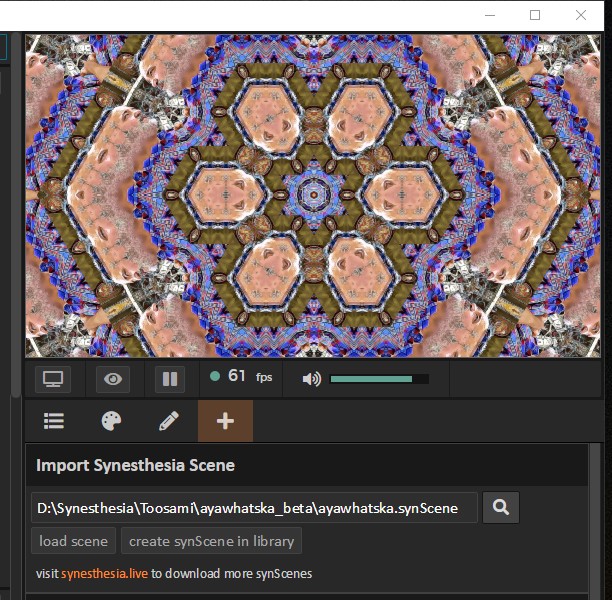
Shader Preview Unavailable
This realtime shader may be too intensive for your current device or browser.
BLOKS Support
Shader help, installation, and Synesthesia setup.
Everything you need to install your BLOKS shaders, get help, and understand how our Synesthesia downloads work.
Support
Need help?
If you’re having issues with a shader purchase, installation, or download, open a ticket through the BLOKS Help Desk.
Visit Help DeskPlatform
Built for Synesthesia
BLOKS Shop shaders are built for Synesthesia. Some shaders may be portable to other platforms, but certain controls or features may be lost.
Porting
Need a Shadertoy conversion?
If you found a shader on Shadertoy that you want to run in Synesthesia, we may be able to help adapt it.
Learn MoreInstallation Instructions
Installing your Synesthesia shader.
Follow these steps after downloading your BLOKS shader package.
Step 1
Extract the downloaded files.
After downloading your shader, unzip the package to a location you can easily find, such as your desktop.
Important: Do not try to load the ZIP file directly into Synesthesia. This may cause Synesthesia to crash.
Step 2
Import the scene in Synesthesia.
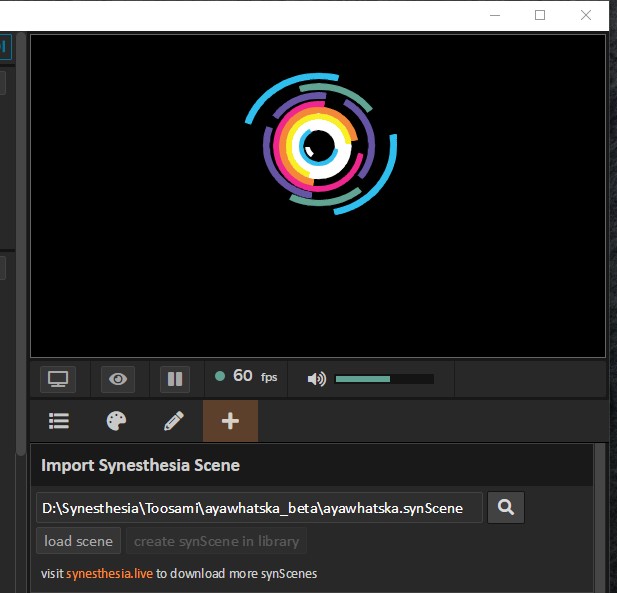
Open your Synesthesia dashboard. In the upper-right area below the preview port, click the + sign to open the Import Synesthesia Scene window.
Use the magnifying glass to find the folder you extracted, then click Load Scene.
Step 3
Add the scene to your library.
Once your shader loads, you should see it working in the preview window.
Important: Click Create synScene in library so the shader is added to your custom scenes library.